INDEPENDENT TOOLS. REAL-WORLD CREATORS.
MANUSPOCKET LIVE / BETA 1

Go live anywhere.
Anytime.
With ManusPocket Live.

Live streaming made simple. Bring your Android phone and a DJI Pocket that supports USB webcam mode, and build a live setup that travels with you.
Beta 1 · Free download · Compatible hardware required
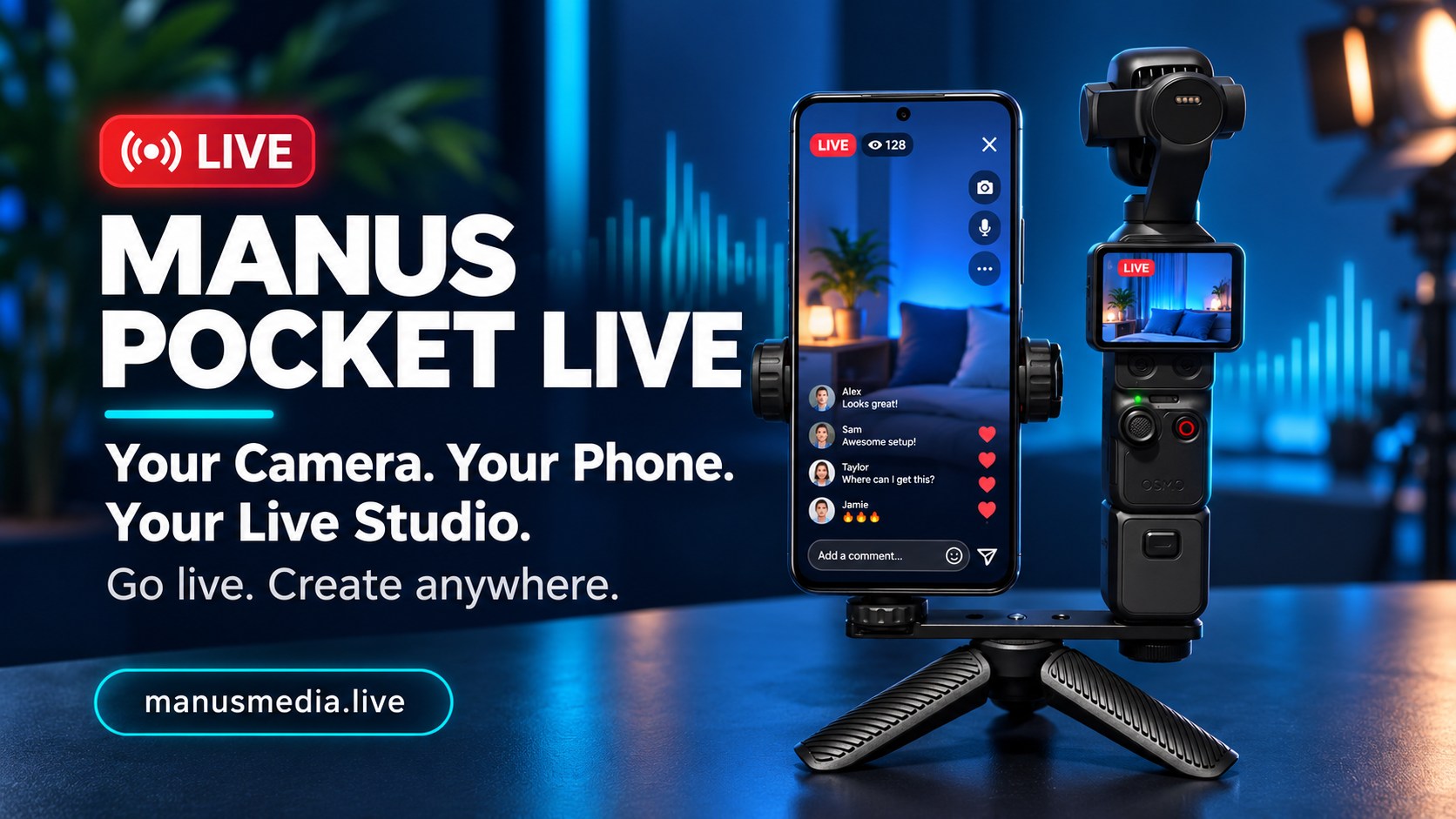
ManusPocket Live promotional artwork: camera and smartphone in a blue studio
Your camera. Your phone. Your live studio.MANUSMEDIA.LIVE
USB / OTGConnect a compatible camera
Auto BitrateAdapt to changing connections
Auto Input FPSDetect the source frame rate
Custom LogoPut your brand on screen

Tools for your next live

From the studio to the field.

BETA 1 · ANDROID

ManusPocket Live

Stream with an Android phone and a compatible USB camera. Auto bitrate and custom logos.

Free download ↓
COMING SOON

ManusMedia Encoder

Windows video encoding software for live streaming and recording. In development and testing.

Product screenshots and release details will appear here.
Not available for download yet
COMING SOON

ManusMedia LTE Finder

A mobile signal tool to help evaluate locations and antenna direction. In development.

App screenshots and release details will appear here.
Not available for download yet
—Website page views
—Download clicks

Loading statistics…

Since tracking was enabled. Page views are not unique people. Download clicks do not confirm completed downloads or installations.

Put your live settings in the right place.

Copy the server URL and stream key from your streaming destination. They are different values and must belong to the same stream.

01 · Server URL / RTMP URL

rtmps://stream.example.com/live/

Paste the platform server address, not a page URL or video watch link.

02 · Stream Key

YOUR_PRIVATE_STREAM_KEY

Paste only your stream key. Keep it private and never publish screenshots containing it.

If your app has just one URL field

For a field explicitly requiring a full URL, append the stream key to the server URL with one separating slash as instructed for that field. If there are separate fields, keep the values separate and do not duplicate the key in the URL.

rtmps://stream.example.com/live/YOUR_PRIVATE_STREAM_KEY

Facebook

Open Live Producer → choose Streaming software → copy the displayed server URL and stream key. Check the preview on Facebook, then select Go Live when ready.

YouTube

Open YouTube Studio → Create → Go live → Stream. Copy the stream URL and stream key from Live Control Room, then check the receiving preview and status.

Restream

Open Restream → New Stream → Encoder | RTMP, or open RTMP Setup for an existing stream. Copy the URL and stream key for that stream.

The values above illustrate the format only and cannot be used to stream. Copy your own platform values, preserving rtmp:// or rtmps://, ports, and parameters exactly. Your app build must support the required protocol. A Streaming status in the app does not confirm that viewers can see your feed: also check the receiving platform.

Platform documentation: YouTube ↗ · Restream ↗

Specifications & Features

Your camera. Your control. Your live performance.

A portable live production toolkit that puts camera input, bitrate control, branding, and live status in one place.

01

Input & Camera

  • USB / OTG video inputConnect compatible USB cameras and capture devices to your Android phone.
  • HDMI camera workflowUse a compatible HDMI-to-USB capture card to bring an HDMI camera into your setup.
  • Automatic input frame-rate detectionSee the frame rate delivered by the connected video source.
  • Live video previewCheck your framing and confirm the picture before you go live.
  • Audio input checkVerify that your selected input delivers sound before starting the stream.
02

Encoding & Bitrate Control

  • Automatic bitrate controlLet Auto Bitrate respond to changing connection conditions.
  • Manual bitrate controlSet your own target bitrate for a predictable connection or a specific production requirement.
  • Adjustable output resolutionChoose an output resolution supported by your device and app build.
  • Output frame-rate selectionChoose an available output FPS to suit your source and workflow.
  • Target bitrate visibilityKeep your configured target in view when checking stream performance.
03

Branding & Live Streaming

  • Custom logo overlayPut your logo directly on the live video and make every stream unmistakably yours.
  • Streaming destination setupEnter the server URL and stream key from your streaming service.
  • Portable Android workflowBuild your live setup around your phone and compatible camera hardware.
  • Pre-live verificationCheck the source, output settings, and destination before transmitting.
04

Live Reports & Indicators

  • Actual bitrate displayRead the bitrate actually being used, alongside the configured target.
  • Actual outgoing FPSMonitor the video frame rate being sent, rather than relying only on the selected FPS.
  • Dropped-frame indicatorTrack dropped frames to help identify interruptions or performance pressure.
  • Input frame-rate readoutCompare the detected source frame rate with your output settings.
  • Stream status indicatorsKeep track of the connection and live output state.
  • At-a-glance performance reportingReview bitrate, FPS, and dropped frames together while troubleshooting a live session.

Available modes and indicators depend on the app version and device. Auto Bitrate helps manage changing bandwidth; it does not guarantee uninterrupted streaming when connectivity is lost.

Real streams.
See for yourself.

Three live recordings provided by ManusMedia. Open the original videos on YouTube and judge the results for yourself.

Contact by email ↗

Free download.
Support what comes next.

Download ManusPocket Live Beta 1 for free and support its development in one place.

BETA 1 · ANDROID

ManusPocket Live

Make live streaming simple with your phone and camera.

AndroidUSB / OTGBeta 1Free Download
↓ Free Download

Opens the file on Google Drive · Please read the usage notice below before installing.

Read the setup guide ↓

Support development

The download is free. Optional contributions support the continued development of ManusPocket Live.

PayPalSupport with PayPal

PayPal: [email protected]
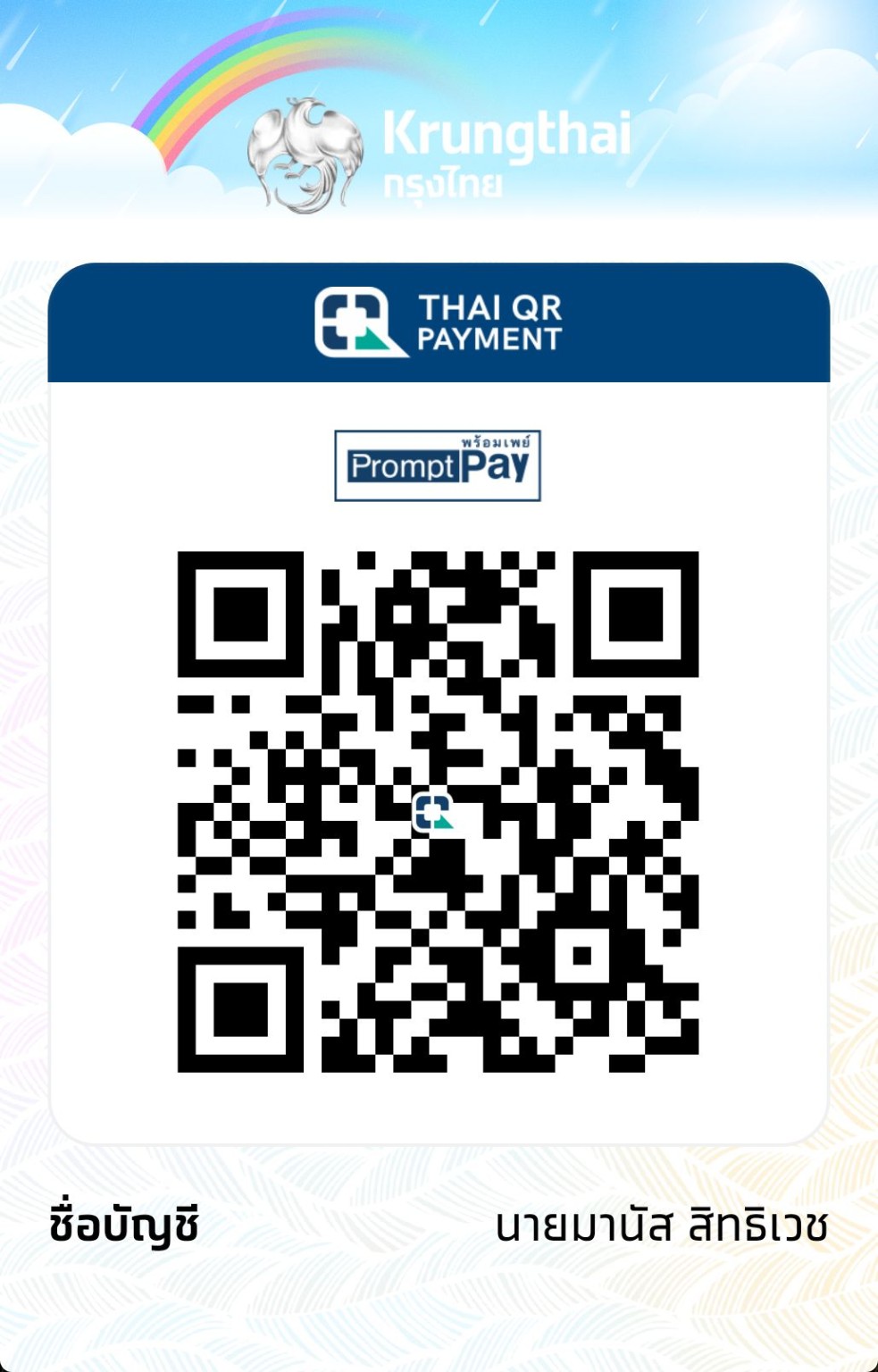
PromptPay · Thai QR Payment

Krungthai PromptPay support QR, account name shown in Thai on the image

Recipient: นายมนัส สิทธิราช
Check the recipient name in your banking app before confirming.

Verify the recipient and amount on PayPal before confirming.

Less guesswork.
More time creating.

A practical starting guide. Menu names and available options may vary with the published app version.

01  Before you begin
  1. Prepare a compatible Android phone with USB / OTG support.
  2. Use a data-capable cable and, if needed, a compatible capture card.
  3. Prepare your streaming destination URL and stream key. Never share your stream key publicly.
02  Connect the video and audio
  1. Set your camera to the appropriate USB webcam mode, or connect its HDMI output to your capture card.
  2. Connect the capture device to your phone and allow USB access when Android asks.
  3. Open the app, check the preview, and verify that the selected audio input is receiving sound.
03  Set the output
  1. Check the actual input mode detected by the app. A camera label alone does not confirm the USB output frame rate.
  2. Choose a supported output resolution and frame rate. Start with the input frame rate when appropriate.
  3. Choose a bitrate your upload connection can sustain. Auto bitrate cannot compensate for a complete loss of connectivity.
04  Run a private test stream
  1. Enter your destination URL and stream key, then start a private or unlisted test where supported.
  2. Check the receiving platform for picture, audio, and motion while panning the camera.
  3. Watch the app status and test for several minutes before using the setup at an event.
05  Troubleshooting & beta feedback
  1. No picture: check camera power, webcam mode, the data cable, and USB permission.
  2. No sound: check the selected audio source and confirm the receiving player is unmuted.
  3. Unstable stream: reduce bitrate and check sustained upload speed. Record the app version, phone, camera, and symptoms when sharing feedback.

Building your first setup?

Explore the creator’s channel for real streams and project updates.

Contact by email ↗

Installation & usage notice

ManusPocket Live Beta 1 is test software provided as is. It may contain errors or be incompatible with some devices. Back up your data, check compatibility, and test before relying on it. If your phone or connected hardware becomes unusually hot, stop using the app and disconnect the equipment immediately. You choose to install and use the app at your own risk. To the extent permitted by applicable law, the developer is not liable for damage to phones or equipment, data loss, or losses arising from use. This notice does not exclude rights or liabilities that cannot lawfully be excluded.

Contact: [email protected]

How to live stream with DJI Pocket and Android

Charging only, no USB picture or unstable streaming? Check camera mode, data cable, USB permission and stream settings.

Read the DJI Pocket live streaming guide →

#DJIPocket #LiveStreaming #ManusPocketLive #AndroidOTG #ถ่ายทอดสด